Color cycling was a technique used in older hardware to provide simple animation to sprites. I've implemented a very basic color cycle renderer in javascript to show off how this technique works.
Finished Product
Before we start into the theory, I figure it's worth showing off the end result. We will take a static image and turn it into this:
Tip: If you don't see an image in this section then you must enable Javascript. This is a javascript demo after all!
Colors
This page will use the Red, Green, Blue additive color model1 when dealing with color values.
This means that all colors can be represented by a set of three numbers ranging from 0 through 255.
Zero is the least intensity of that color while 255 is the highest intensity. These values may also
be described in hexadecimal resulting in the format of HTML color codes (#FF4500)2. I strongly
recommend reading the first two footnotes if you are unfamiliar with these concepts or syntax.
Sprites and Pixels
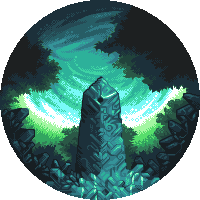 A typical sprite or object is made up of a grid of color values. Every cell within the grid is
a pixel. The monolith reference image 3 is a set of 200x200 pixels. Each of these cells is
given a static color value, typically represented as a set of three numbers when drawn to the
screen.
A typical sprite or object is made up of a grid of color values. Every cell within the grid is
a pixel. The monolith reference image 3 is a set of 200x200 pixels. Each of these cells is
given a static color value, typically represented as a set of three numbers when drawn to the
screen.
Zooming in on a small portion of this image makes this more clear. This image is composed of only sixteen distinct colors (counting white) 4:
#317a85 #2db19a #2a5846 #79f9f7
#3ed4a4 #171f23 #56de6c #32a660
#337f59 #21433b #254953 #FFFFFF
Color Cycling
To enhance our sprite we will change the way the colors function on our image. Each distinct color in the image will be replaced with a pointer to a color palette. This will turn the image into a color-by-number puzzle.

A change in the color palette will result in all references to that color in the image being changed. Updating the color in a single place (the palette) is much more efficient than updating every pixel in the image itself.
Note - Since an HTML 2dCanvas will require per-pixel manipulation this post won't replicate color-cycling but will demonstrate how to simulate the effect.
Example - Sim City 2000 Urban Renewal Kit (SCURK)
SimCity 2000 5 was released for DOS and Windows back in 1993. This game made heavy use of color cycling for animating the cars on roads, clouds of smoke from factories and flashing lights on buildings.
A user could paint buildings with a regular palette or a special color-cycling palette when using the SimCity Urban Renewal Kit (SCURK).
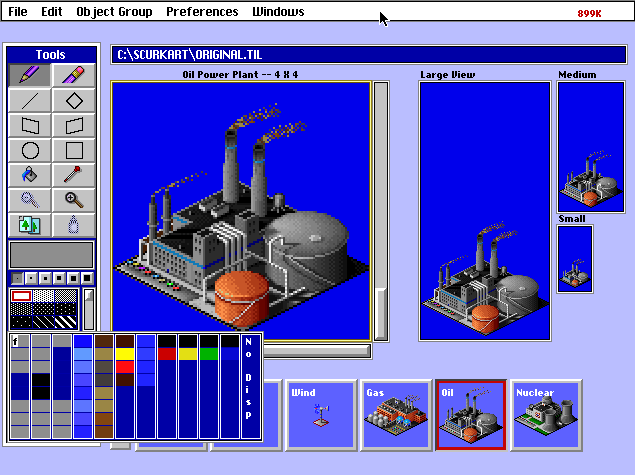
SCURK had 11 pre-defined color palettes that would auto-rotate down through the colors. These are visible in the selection box above. Each cycle index could be painted identical to a normal colored pixel.
SimCity's engine would rotate down through the color cycle list in a loop on a set timer. For example, a runway light could be painted with cycle index 8 to blink a pixel between black and red.
Javascript and Canvas
For the rest of this post I will be animating a small portion of the monolith. The goal is to define two cycle palettes, one for the swirling clouds and a second which will cause the runes to glow.
Canvas Elements
HTML provides a native canvas element which can be painted to on a per-pixel basis. When an image
is loaded onto the canvas it is possible to query specific color values at specific pixel locations.
We will use the CanvasRenderingContext2D.getImageData()5 method to query the canvas and return data
about the canvas context which has been drawn on.
let canvas = document.getElementById('canvas');
let ctx = canvas.getContext('2d');
let monolith = new Image();
/* Execute when the image is loaded onto the canvas */
monolith.onload = function() {
    ctx.drawImage(monolith, 0, 0);
    /* Grab a 1 by 1 pixel (so 1 pixels) selection at 100,100, the center */
    console.log (ctx.getImageData(100, 100, 1, 1).data);
};
monolith.src = 'original_monolith.png';
The above script loads the image onto the canvas and returns the pixel colors as a Uint8ClampedArray four
values long. Canvas uses RGBA encoding, where the final byte represents the transparency level of the
pixel.
Uint8ClampedArray(4)
    0: 23
    1: 31
    2: 35
    3: 255
    buffer: ArrayBuffer { byteLength: 4 }
    byteLength: 4
    byteOffset: 0
    length: 4
    : Uint8ClampedArrayPrototype { … }
The color rbga(23, 31, 35, 255) is an incredibly dark green that seen in the middle of the monolith's socket.
Changing Colors
Now that we can obtain pixel colors from the canvas we can swap out colors dynamically. In the following example
a function swapColorInCanvas()/3 will switch out all the colors matching rgba(23, 31, 35, 255) with a bright
red. I've also added a helper function that will allow the conversion of HTML color codes to RGBA arrays since HTML
color codes will be used through the rest of this post to represent colors.
let canvas = document.getElementById('canvas-example-2');
let ctx = canvas.getContext('2d');
let monolith = new Image();
/* Execute when the image is loaded onto the canvas */
monolith.onload = function() {
    ctx.drawImage(monolith, 0, 0);
    swapColorInCanvas(canvas, '#171F23', '#FF0000');
};
monolith.src = 'original_monolith.png';

/**
* Converts a hex RGB Color code to an RBG array.
*
* Modified to return a static alpha value of fully visible 255).
* Source from https://stackoverflow.com/a/5624139 - CC BY-SA 4.0 - Tim Down
*
* @param hex string An HTML color code with a hash and six hex digits
* @return object An array with r,b,g,a values in that order or black if none found.
*/
function hexToRgb(hex) {
    let result = /^#?([a-f\d]{2})([a-f\d]{2})([a-f\d]{2})$/i.exec(hex);
    return result ? [
        parseInt(result[1], 16),
        parseInt(result[2], 16),
        parseInt(result[3], 16),
        255
    ] : [0, 0, 0, 0];
}

/**
* Swaps the pixel color values in a canvas.
*
* @param canvas Canvas
* @param sourceHTMLColor string An HTML color code to match on
* @param targetHTMLColor string An HTML color code to replace with
* @return void
*/
function swapColorInCanvas(canvas, sourceHTMLColor, targetHTMLColor) {
    let sourceColor = hexToRgb(sourceHTMLColor);
    let targetColor = hexToRgb(targetHTMLColor);
    let context = canvas.getContext('2d');
    let imageData = context.getImageData(0, 0, canvas.height, canvas.width);
    /* Take every four bytes of the image data at a time, representing one RGBA set. */
    for (let i = 0; i < imageData.data.length; i+=4) {
        if (imageData.data[i] === sourceColor[0] &&   // Red
            imageData.data[i+1] === sourceColor[1] && // Blue
            imageData.data[i+2] === sourceColor[2] && // Green
            imageData.data[i+3] === sourceColor[3]    // Alpha
        ){
            // Swap Colors
            imageData.data[i] = targetColor[0];   // Red
            imageData.data[i+1] = targetColor[1]; // Blue
            imageData.data[i+2] = targetColor[2]; // Green
            imageData.data[i+3] = targetColor[3]; // Alpha
        }
    }
    /* Update the context */
    context.putImageData(imageData, 0, 0)
}
If the image above this text did not load properly ensure that you have javascript enabled for this page.
This gets us most of the way there by replacing colors, however there is one huge issue. Currently, the script replaces all of a color in our image with another color. When animating the runes and clouds only portions of the image should be replaced.
Masking the Image

Since the source image is of a very limited palette we can select new colors to draw on the image before we do the color swaps. The following monolith has been hand-painted with some new colors which we can selectively replace, avoiding swapping pixels we want to keep.
Each color will be mapped to a unique color-cycling palette:
Animating the Palette Swap
Next we must define a set of color rotations for each of the above palette selectors. For example purposes the animation swaps will be eight frames long. If eight colors are not required then colors can be doubled up, essentially animating nothing.
Rotation Palettes
I have selected the following palettes for my rotations where the first color is the color to swap and the following colors are the "frame" colors to use for the swap:
#F000FF #FFFFFF #79f9f7 #3ed4a4 #2db19a #359399 #317a85 #275d65 #254953
#F5FF90 #79f9f7 #3ed4a4 #2db19a #359399 #317a85 #275d65 #254953 #FFFFFF
#FFF224 #3ed4a4 #2db19a #359399 #317a85 #275d65 #254953 #FFFFFF #79f9f7
#FFA152 #2db19a #359399 #317a85 #275d65 #254953 #FFFFFF #79f9f7 #3ed4a4
#FF5252 #359399 #317a85 #275d65 #254953 #FFFFFF #79f9f7 #3ed4a4 #2db19a
#C20D0D #317a85 #275d65 #254953 #FFFFFF #79f9f7 #3ed4a4 #2db19a #359399
#661919 #275d65 #254953 #FFFFFF #79f9f7 #3ed4a4 #2db19a #359399 #317a85
#2C0B0B #254953 #FFFFFF #79f9f7 #3ed4a4 #2db19a #359399 #317a85 #275d65
#090202 #FFFFFF #79f9f7 #3ed4a4 #2db19a #359399 #317a85 #275d65 #254953
❔ Question: Using a simple color replacement scheme the animation will break after the first frame. Can you figure out why?
Animation
Now that we have a properly masked image we must animate the palettes! If the script simply replaces colors then the animation will break after the first frame. Since our mapping color will be replaced the script has no way to match those pixels for the next frame. There are several solutions to this problem. Let's consider some briefly and figure out the best way forwards.
Possible Solution #1 - Calculated Masks
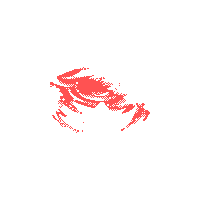
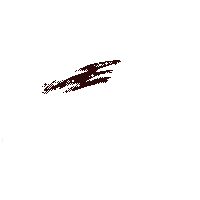
Upon loading the image we can make a mask of the each set of pixels that need to modified and save this mask as a new bitmap that will be referenced during the animation phase. Each mask will look something like the following two images.
Since we have nine total colors to animate against this means nine masks would be required. The memory footprint of our graphic is nine times larger now. For a small 200x200 image this isn't bad but could be unwieldy when working with raw bitmaps in HD.
If this solution were to be used the following could be done:
- Load the initial image
- Iterate over the image for each mask color and create a new masking bitmap
The animation would be need to be as follows:
- Iterate over the image for each image mask (9 runs)
- Replace the color in the original image based on the matches against the mask value and current frame number
This means that for every frame we must draw the image 9 times since we must calculate every mask.
Benefits
- Requires single source image
- Provides perfect color accuracy
Drawbacks
- Requires calculating mask images initially
- Animation requires high iteration count over the image / masks
- Larger memory footprint (9x larger than single image)
Possible Solution #2 - Mask Image + Normal Image
This is similar to solution one. However, instead of using a single image that has a mask and replacing that mask we can simply upload two images, the original and a masking image. This eliminates the "calculating" mask step entirely, animation can start right away.
- Iterate over the image and mask concurrently (they are of equal size)
- Replace the color in the original image based on the matches against the mask image value and current frame number
Benefits
- Provides perfect color accuracy
- No pre-animation calculation required
- Animation requires iterating over the image once
Drawbacks
- Larger memory footprint (2x larger than single image)
Possible Solution #3 - Using Alpha Channel
Each image already has an alpha channel set to a value of 255 (opaque). Since tiny changes in alpha are nearly invisible the alpha channel could be used to store a few bits of information, essentially encoding the mask value in the alpha channel. Although this technically impacts the color accuracy of the image it should be imperceptible.
The following process shows how this could be done:
- Iterate over the image for each mask.
- Adjust the alpha channel based on the mask number, subtracting from 255.
Since 9 masks are in use, the values of alpha will be 255 for the pixels not matching a mask and 254 through 246 for pixels that do match the mask.
During animation the process would be as follows:
- Iterate over the image for each image mask possibility (9 runs)
- Use the alpha channel value to determine if the pixel should be changed during the run.
Benefits
- Smaller memory footprint
- Requires a single source image
- Animation requires iterating over the image once
Drawbacks
- Requires calculating alpha masks initially
- Reduced color accuracy (imperceptible?)
❔ Question: Can you think of other solutions? Consider the benefits and caveats of each and implement a few. Can you measure the performance difference?
Animation Code
The rest of this page will use the alpha channel solution #3. I feel it's worse than solution #2, but it is simple and interesting to implement. I will first list the entire code segment and then break it down part by part.
Note: The SwapColorFromCanvas()/4 function will not be used in this solution, although two new similar operations
have taken its place.
Here is the full code which will be broken down in the next section.
let cycleList = {
    246: {
        mask: '#F000FF',
        palette: ['#FFFFFF', '#79f9f7', '#3ed4a4', '#2db19a',
                    '#359399', '#317a85', '#275d65', '#254953'],
    },
    247: {
        mask: '#F5FF90',
        palette: ['#3ed4a4', '#2db19a', '#2db19a', '#359399',
                    '#317a85', '#275d65', '#254953', '#FFFFFF'],
    },
    248: {
        mask: '#FFF224',
        palette: ['#2db19a', '#2db19a', '#359399', '#317a85',
                    '#275d65', '#254953', '#FFFFFF', '#79f9f7'],
    },
    249: {
        mask: '#FFA152',
        palette: ['#2db19a', '#359399', '#317a85', '#275d65',
                    '#254953', '#FFFFFF', '#79f9f7', '#3ed4a4'],
    },
    250: {
        mask: '#FF5252',
        palette: ['#359399', '#317a85', '#275d65', '#254953',
                    '#FFFFFF', '#79f9f7', '#3ed4a4', '#2db19a'],
    },
    251: {
        mask: '#C20D0D',
        palette: ['#317a85', '#275d65', '#254953', '#FFFFFF',
                    '#79f9f7', '#3ed4a4', '#2db19a', '#359399'],
    },
    252: {
        mask: '#661919',
        palette: ['#275d65', '#254953', '#FFFFFF', '#79f9f7',
                    '#3ed4a4', '#2db19a', '#359399', '#317a85'],
    },
    253: {
        mask: '#2C0B0B',
        palette: ['#254953', '#FFFFFF', '#79f9f7', '#3ed4a4',
                    '#2db19a', '#359399', '#317a85', '#275d65'],
    },
    254: {
        mask: '#090404',
        palette: ['#FFFFFF', '#79f9f7', '#3ed4a4', '#2db19a',
                    '#359399', '#317a85', '#275d65', '#254953'],
    }
};

/* Execute when the image is loaded onto the canvas */
let monolith = new Image();
monolith.src = 'mapped_monolith.png';

monolith.onload = function () {
    let canvas = document.getElementById('canvas-example-3');
    let context = canvas.getContext('2d');
    context.drawImage(monolith, 0, 0);
    /* Initial color swap and alpha adjustment to create "layers" */
    for (const [key, value] of Object.entries(cycleList)) {
        adjustAlphaMasks(canvas, value.mask, value.palette[0], key);
    }

    /* Continue redrawing on the alphas that were set */
    let animationIdx = 0;
    setInterval(function () {
        swapColorFromAlpha(canvas, cycleList, animationIdx);
        animationIdx++;
        if (animationIdx >= 8) {
            animationIdx = 0
        }
    }, 300);
};

/**
    * Converts a hex RGB Color code to an RBG array.
    *
    * Modified from https://stackoverflow.com/a/5624139 - CC BY-SA 4.0 - Tim Down
    *
    * @param hex string An HTML color code with a hash and six hex digits
    * @return object An array with r,b,g,a values in that order or black if none found.
    */
function hexToRgb(hex) {
    let result = /^#?([a-f\d]{2})([a-f\d]{2})([a-f\d]{2})$/i.exec(hex);
    return result ? [
        parseInt(result[1], 16),
        parseInt(result[2], 16),
        parseInt(result[3], 16),
    ] : [0, 0, 0];
}

/**
    * Swaps the pixel color based on the alpha value of the pixel.
    *
    * @param canvas Canvas The canvas to operate upon.
    * @param cycleList int A value of alpha level to match on.
    * @param frameNumber int The current frame number to use.
    * @return void
    */
function swapColorFromAlpha(canvas, cycleList, frameNumber) {
    let context = canvas.getContext('2d');
    let imageData = context.getImageData(0, 0, canvas.height, canvas.width);

    /* Take every four bytes of the image data at a time, representing one RBGA set. */
    for (let i = 0; i < imageData.data.length; i += 4) {
        // Store the alpha value of the current pixel as a string
        let alphaString = imageData.data[i + 3].toString();

        // If the alpha value string is a key of the cycle object, rotate the color
        if (cycleList.hasOwnProperty(alphaString)) {
            let targetColor = hexToRgb(cycleList[alphaString].palette[frameNumber]);
            imageData.data[i] = targetColor[0];     // Red
            imageData.data[i + 1] = targetColor[1]; // Blue
            imageData.data[i + 2] = targetColor[2]; // Green
        }
    }
    /* Update the context */
    context.putImageData(imageData, 0, 0)
}

/**
    * Swaps the pixel color values in a canvas and adjusts the alpha value.
    *
    * @param canvas Canvas The canvas element to operation upon
    * @param sourceHTMLColor string An HTML color code to match on
    * @param targetHTMLColor string An HTML color code to replace with
    * @param alphaValue int The alpha value to set for the replaced color
    * @return void
    */
function adjustAlphaMasks(canvas, sourceHTMLColor, targetHTMLColor, alphaValue) {

    let sourceColor = hexToRgb(sourceHTMLColor);
    let targetColor = hexToRgb(targetHTMLColor);
    let context = canvas.getContext('2d');
    let imageData = context.getImageData(0, 0, canvas.height, canvas.width);
    /* Take every four bytes of the image data at a time, representing one RBGA set. */
    for (let i = 0; i < imageData.data.length; i += 4) {
        if (imageData.data[i] === sourceColor[0] &&     // Red
            imageData.data[i + 1] === sourceColor[1] && // Blue
            imageData.data[i + 2] === sourceColor[2]    // Green
        ) {
            // Swap Colors
            imageData.data[i] = targetColor[0];     // Red
            imageData.data[i + 1] = targetColor[1]; // Blue
            imageData.data[i + 2] = targetColor[2]; // Green
            imageData.data[i + 3] = alphaValue      // Alpha
        }
    }
    /* Update the context */
    context.putImageData(imageData, 0, 0)
}
Defining the Colors
The first segment of code sets up the masking colors and palettes to use. Each mask is an object with the key as the alpha value we will wish to use for masking. The entire structure is an object as well instead of an array. This will allow for a key-value lookup table later on for simplicity.
let cycleList = {
    246: {
        mask: '#F000FF',
        palette: ['#FFFFFF', '#79f9f7', '#3ed4a4', '#2db19a',
                    '#359399', '#317a85', '#275d65', '#254953'],
    }, // snip....
}
Main Loop
When the script loads initially image that will be cycled is loaded. Once the load of the image completes the canvas
element is found and the image is drawn onto the context. Next the cycleList object is iterated across all the keys
(alpha values) along with the mask/palette data. These values are parameters to the swapColorInCanvas function.
Once the canvas has had all the various areas adjusted with the appropriate alpha values the animation loop can
start. The swapColorFromAlpha()/3 is very similar to the SwapColorInCanvas()/4. Not only does it swap out a color
but the alpha mask is adjusted during the replacement. The first color from the palette is passed in so the image mask
is removed quickly, this avoids a nasty artifact before the first frame is drawn.
Next the animation interval starts. Every 300ms the image is redrawn. The animationIdx counts from 0 to 7 and is reset
at 8 back to 0. The swapColorFromAlpha()/3 call passes in the canvas, the cycle list and the current animationIndex.
This completes the entire main loop!
/* Execute when the image is loaded onto the canvas */
let monolith = new Image();
monolith.src = 'mapped_monolith.png';

monolith.onload = function () {
    let canvas = document.getElementById('canvas-example-3');
    let context = canvas.getContext('2d');
    context.drawImage(monolith, 0, 0);
    /* Initial color swap and alpha adjustment to create "layers" */
    for (const [key, value] of Object.entries(cycleList)) {
        adjustAlphaMasks(canvas, value.mask, value.palette[0], key);
    }

    /* Continue redrawing on the alphas that were set */
    let animationIdx = 0;
    setInterval(function () {
        swapColorFromAlpha(canvas, cycleList, animationIdx);
        animationIdx++;
        if (animationIdx >= 8) {
            animationIdx = 0
        }
    }, 300);
};
Further Work
There may be a way to get closer to "real color cycling" by using WebGL elements and texture maps. I haven't investigated this yet, but it would be a fun exercise and could be more performant.
Sprite swapping is a much more effective means of animation given the computer resources available now, so I don't see any reason to develop this further at this time.
Inspirations for this Post
This post was heavily influenced by my love of SimCity2000's SCURK which I spent countless hours in as well as the magic that is the HTML5 color-cycling demo.
Seriously, check out this incredible work! EffectGames HTML5 Color Cycling Demo